DMValdez Cron Auditor: A First Look at the New WP-Cron Visibility Plugin
Some links in this guide are affiliate links. If you sign up through them, Day Zero Guides may earn a commission at no extra cost to you. This never affects which products we cover or what we say about them. See our affiliate disclosure for details.
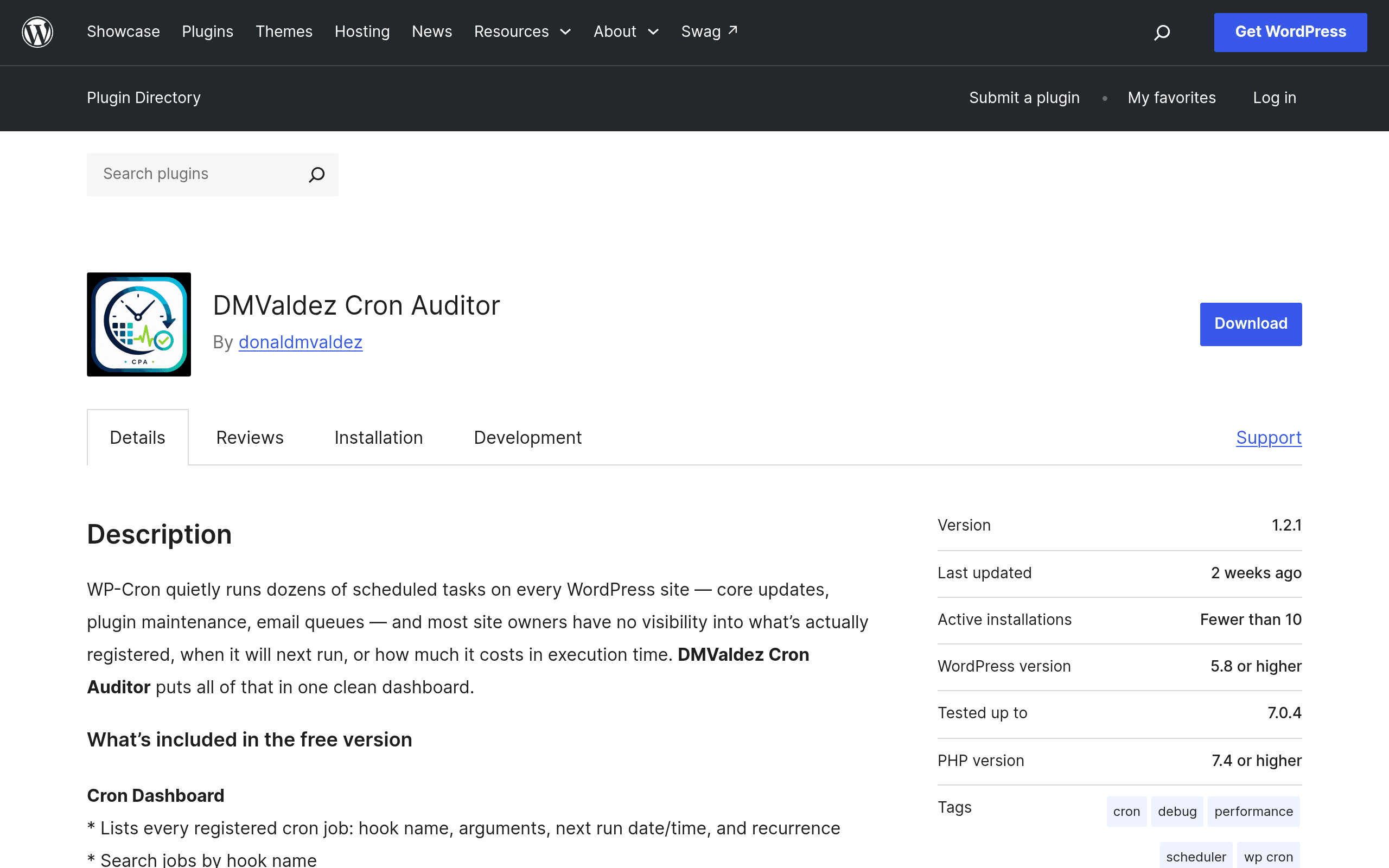
What DMValdez Cron Auditor Actually Does
If you've ever opened a WordPress site that felt sluggish for no obvious reason, there's a decent chance a runaway or duplicated WP-Cron job was part of the problem. WP-Cron isn't a real cron job — it's a pseudo-cron that fires on page load, which means poorly behaved plugins can quietly stack up scheduled tasks that never fire, fire too often, or hang the request that triggers them.
DMValdez Cron Auditor is a new plugin, freshly listed on the WordPress.org plugin directory, that puts a proper dashboard in front of this mess. It lists every registered cron job (core and plugin-added), shows next/last execution times, and lets you manually trigger, pause, resume, or edit a job's schedule without touching wp-config.php or a code snippet plugin. It also includes a basic performance-impact view, so you can see roughly how much time each hook is costing on execution.
The plugin is brand new, so this is a first-look, not a long-term reliability verdict — but the feature set is already more complete than most first releases in this category.
Who Should Actually Install This
- Agencies managing client sites who need a fast way to answer "why is this site slow" without SSH access or a staging environment to profile cron behavior.
- Site owners running WooCommerce or membership plugins that register a lot of their own cron hooks (abandoned cart emails, subscription renewals, report generation) and want to confirm they're actually firing on schedule.
- Developers debugging a specific plugin conflict — being able to pause one cron job in isolation, without disabling the plugin entirely, is genuinely useful for triage.
- Anyone who's ever had WP-Cron silently stop firing because traffic dropped and no page loads were triggering it — the manual trigger button alone solves a support-ticket-generating problem.
If your site runs a handful of plugins and you've never had a performance complaint, this is a nice-to-have, not urgent.
Pricing: What's Free Today vs. What's Coming
The entire current feature set — job listing, manual trigger, pause/resume, schedule editing, and the performance-impact view — is available in the free version, distributed through the WordPress.org repository like any standard plugin.
A Pro tier is announced but not yet priced. The stated roadmap for Pro includes:
- Historical execution logs (so you can see patterns over days/weeks, not just the next run time)
- Email alerts when a job fails, stalls, or misses its schedule
No pricing page, license tiers, or checkout flow exist yet for Pro — so budget for this as a free tool today, and treat any future Pro cost as an unknown. If alerting and historical logs are the reason you'd want this plugin, it's worth installing the free version now to get familiar with the dashboard, then watching for the Pro launch rather than waiting on it.
How It Compares to Existing Cron Tools
The WP-Cron visibility space isn't new — Advanced Cron Manager and WP Control have been around for years, and WP Rocket bundles a narrower cron-optimization feature inside its caching plugin. Here's how DMValdez Cron Auditor stacks up:
| DMValdez Cron Auditor | Advanced Cron Manager | WP Control | WP Rocket (cron feature) | |
|---|---|---|---|---|
| Price | Free (Pro pricing TBA) | Free, with a paid PRO add-on (~$29/site/year) | Free | $59/year for 1 site (WP Rocket is primarily a caching plugin) |
| Core focus | Cron auditing + performance impact | Cron management + manual control | Cron and post-status inspection combined | Disables WP-Cron pseudo-cron in favor of real server cron |
| Manual trigger/pause/resume | Yes | Yes | Yes (via cron event editor) | No — it changes cron execution method, not individual jobs |
| Performance impact measurement | Yes, built-in | No | No | Indirect — reduces load by moving cron off page requests |
| Historical logs / alerts | Coming in Pro (not yet available) | Available in PRO add-on | No | No |
| Best for | Diagnosing which specific job is slow, right now | Ongoing cron management on production sites with a paid tier already in place | Developers who also want post/page status auditing | Sites that want to stop relying on page-load-triggered cron entirely |
The honest distinction: Advanced Cron Manager is the more mature, battle-tested option if you need reliable pause/resume today and don't mind paying for its PRO tier for advanced features. WP Control is older and less actively maintained but still functional for basic inspection. WP Rocket's cron feature solves a different problem entirely — it's about how cron executes (real cron vs. WP-Cron), not about auditing individual jobs — so it's not a direct substitute.
DMValdez Cron Auditor's edge right now is the built-in performance-impact view, which neither Advanced Cron Manager nor WP Control offers out of the box. That's the feature worth trying it for today.
Should You Install It Today?
Yes, if you want a no-cost way to see which cron jobs are actually consuming time on your site, and you're comfortable using a first-release plugin without a long track record. Because it's new, keep expectations calibrated: test on a staging site first if you're managing anything client-facing, and don't rely on it yet for alerting since that feature doesn't exist. If you already pay for Advanced Cron Manager PRO and it's working, there's no urgent reason to switch — but if you've been putting off getting visibility into WP-Cron because every existing option felt clunky or dated, this is worth the five minutes it takes to install and look at your own job list.